
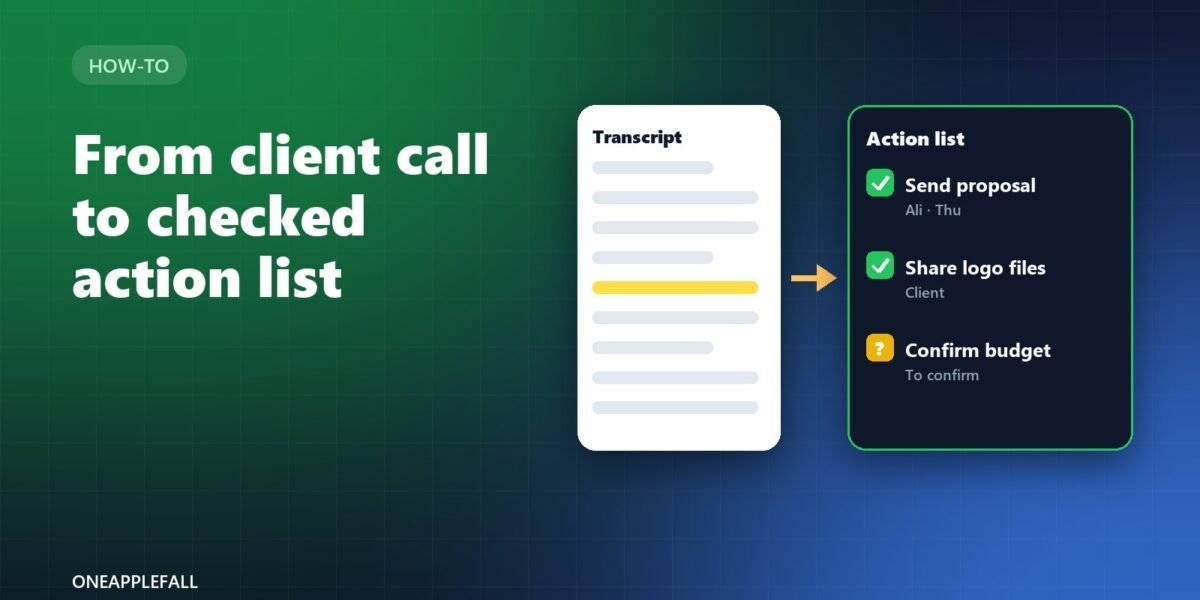
Illustration by OneAppleFall. Not a screenshot of any app.
Researched October 24, 2026
After a client call, someone has to write down who promised what, by when, and send a follow-up. AI can draft all of that from a transcript in seconds. The risk is that it also gets things wrong in ways that are easy to miss: a task assigned to the wrong person, a deadline that was never agreed, or a “commitment” that was only an idea. This guide gives you a five-step workflow with copy-ready prompts, including a checking step designed to catch those errors before anything reaches your client.
Quick answer: (1) Get consent and record the call. (2) Turn it into a transcript with a note-taker or a free transcriber. (3) Ask an AI assistant for an action list in a fixed format, with a quote from the transcript for every item. (4) Check each item against its quote and remove anything without one. (5) Only then ask the AI to draft the follow-up email from the checked list. Before pasting client calls into ChatGPT or Claude, check whether your plan lets the company train on your chats, and switch that off if needed. [1][2][3]
This is a researched workflow based on product documentation and our own prompt design. The prompts are suggestions to adapt; we have not measured their accuracy across tools.
Step 1: Get consent, then record
US federal law requires at least one party’s consent to record, but about a dozen states, including California, Florida, Illinois and Washington, require everyone on the call to agree. [3] For client calls, the simplest approach is to mention recording in the invitation and again at the start of the call.
Step 2: Get a transcript
You have two common options:
- A meeting note-taker such as Otter, Fireflies or Fathom joins the call and transcribes it. Most also produce their own summary and action items, which you can still check with step 4. See Otter vs Fireflies vs Fathom for plans and prices.
- A recording you transcribe afterwards. OneAppleFall’s free AI Video Transcriber turns a video or audio file into text on your own device, without uploading it (disclosure: it is made by OneAppleFall). See how to transcribe a video to text for free.
Before moving on, skim the transcript and fix any names, company names and numbers the transcription got wrong; every later step depends on them.
Step 3: Ask for an action list with evidence
Paste the transcript into your AI assistant with a prompt that forces a fixed format and a supporting quote for every item. Asking for quotes makes invented items easy to spot.
Prompt: action list
You are preparing an action list from a client call transcript. List only tasks that someone clearly agreed to do. For each task give: (1) the task, (2) the owner's name exactly as in the transcript, (3) the deadline only if one was stated, otherwise "no date agreed", (4) a short exact quote from the transcript that shows the agreement. Do not include ideas, suggestions or possibilities unless someone agreed to act on them. If you are unsure whether something was agreed, put it in a separate list called "To confirm". Transcript: [paste]Step 4: Check every item against its quote
This is the step that prevents embarrassing follow-ups. For each task:
- Find the quote in the transcript (use your browser’s find function).
- Check the owner: did that person actually say they would do it?
- Check the deadline: was a date or day really agreed, or did the AI infer one?
- Check the wording: “We could look at a discount” is not “We will give a 10% discount”.
- Delete or move anything without a matching quote to “To confirm”.
Common errors to watch for:
| Error | Example | How it shows up |
|---|---|---|
| Wrong owner | A client’s task assigned to you | The quote shows someone else speaking |
| Invented deadline | “By Friday” when no day was set | No date appears in the quote |
| Idea turned into a promise | “Maybe a case study” becomes “Write a case study” | The quote contains “maybe”, “could” or “think about” |
| Merged speakers | Two people’s comments combined | The transcript has unclear speaker labels |
| Wrong numbers | Prices or quantities changed | Compare digits in the quote with the task |
Step 5: Draft the follow-up email from the checked list
Only now ask for the email, and give the AI the checked list, not the full transcript, so it can’t reintroduce removed items.
Prompt: follow-up email
Write a short, friendly follow-up email to [client name] after today's call about [topic]. Use only the confirmed actions below. Group them under "We will" and "You will". Put the "To confirm" items as questions. Keep it under 200 words and in American English. Do not add any commitments, prices or dates that are not in the list. Confirmed actions: [paste checked list] To confirm: [paste]Read the draft once more, then send it from your own email account.
Privacy: check your AI settings first
Client calls often contain confidential details. Before pasting transcripts into a consumer AI account:
- ChatGPT (Free, Go, Plus, Pro): OpenAI may use your conversations to train its models unless you turn off Settings > Data Controls > “Improve the model for everyone”. ChatGPT Business, Enterprise and Edu data is not used for training by default. [1]
- Claude (Free, Pro, Max): you choose whether chats are used for training with the “Help improve Claude” setting under Privacy. [4] If you allow training, Anthropic keeps that data for up to 5 years; if you opt out, the standard retention is 30 days. Team, Enterprise and API use is not covered by this consumer setting. [2]
- Remove what you don’t need. Delete account numbers, health details and other sensitive data from the transcript before pasting it anywhere.
- Check your client contract for confidentiality terms that might restrict using outside tools.
A ready-to-use checklist
- Consent mentioned in the invite and at the start of the call.
- Transcript created and names and numbers corrected.
- Action list generated with a quote for each item.
- Every item checked against its quote; unsupported items moved to “To confirm”.
- Follow-up drafted from the checked list only.
- Draft read once more and sent from your own account.
- AI training setting checked for the account you used.
Questions
Can’t my note-taker just send the summary automatically?
Many can, but automatic summaries have the same risks: wrong owners, invented deadlines and ideas reported as decisions. Checking takes a few minutes and protects your credibility with clients.
Which AI assistant is best for this?
Any capable assistant can follow these prompts. Choose based on your plan’s privacy settings and what you already use; see our Claude vs ChatGPT vs Gemini comparison.
What if the transcript doesn’t label speakers?
Ask the AI to mark owners as “unclear” when it can’t tell who spoke, and confirm them in your follow-up email.
Should I send the full transcript to the client?
Usually not. Send the checked summary and actions; share the recording or transcript only if your client asks and your agreement allows it.
